
To send an X post to someone, open the post's share icon, choose Send via Direct Message, pick the person and send. If they are not on X, or not someone you can message there, copy the post's link from the same menu and send it by text or email instead.
The harder part comes later: finding that post again a month from now, when it sits somewhere in a DM thread among every other message. Below, X's own options come first, then Shareling.
How do I send an X post to one person?
Tap or click the share icon on the post, choose Send via Direct Message, pick the person and send. X's help centre gives slightly different steps per platform.
On the web:
- Click the share icon on the post.
- Select Send via Direct Message.
- Type a name, or pick one of the suggested accounts.
- Optionally add a comment, then click Send.
On iPhone: tap the share icon and pick the recipient straight from the quick-share list. Add a comment or note if you want, then tap Send.
On Android: tap the share icon, then Send via Direct Message, choose the person, optionally add a comment, and tap Send.
Three limits catch people out:
- Protected posts cannot be sent by DM. X's help page says it plainly: "A protected Post cannot be shared through a Direct Message."
- Your own posts on your profile page do not show the share icon. X points to a different icon for sending those by DM.
- Not everyone can receive your DM. You can start a conversation with anyone who follows you. Someone who does not follow you can be messaged only if they have opted in to messages from everyone, or from Verified users when you are Verified, or if you have messaged each other before.
The same share menu lets you pick more than one account, and X group conversations hold up to 256 people. For one friend, one recipient is all you need.
What happens to a link sent in an X DM?
X rewrites it: every link shared in a Direct Message is shortened to a t.co link, and the t.co service counts how often that link is clicked. The help centre is direct about the choice you have: "You cannot opt out of link shortening." X also checks t.co links against a list of potentially dangerous sites. Anyone holding the t.co link can follow it to the page it points to.
Two more things about the message itself:
- Deleting a DM only removes it for you. The other person still sees the post in their copy of the conversation.
- Finding it later means searching DMs. X lets you search DMs by keywords and names. It notes that searching images or GIFs to find a conversation is not available.
In practice, a post you sent last month lives in that conversation's history. X has no view that lists "every post my friend sent me".
Can I keep a private list of posts on X?
Yes: X Bookmarks. X describes them as a way to "save posts in a timeline for easy, quick access at any time", and they are private: "Bookmarks are private and are only viewable to you within your X account."
To bookmark a post on desktop, open its share icon and choose Add post to Bookmarks. Find them again under Bookmarks in the profile icon menu. The share icon on a bookmarked post removes it again, and a "more" icon at the top of the Bookmarks timeline clears them all at once.
Every account gets one flat Bookmarks timeline. Organising posts into Bookmark Folders is an X Premium feature, included from the Basic tier up, and only where X Premium is offered. With Premium, every bookmark is also kept in an All Bookmarks folder, and removing a post from a folder does not delete the bookmark.
What Bookmarks do not do is share. They are private to one account, and X's help describes no way to share a Bookmark Folder with another person. Bookmarks and DMs are separate features: bookmarking a post does not send it anywhere, and sending a post does not bookmark it.
How do I share an X post outside X?
Copy the post's link and paste it wherever you want to send it. X's own share options also include sending a post by SMS or email to contacts in your phone's address book.
To copy the link:
- Web: click the share icon on the post and choose Copy link to Post. The URL goes to your clipboard.
- iPhone: tap the share icon, then Copy link to Post.
- Android: tap the share icon, then Share Post via, then Copy link to Post.
X says "every post, Moment, List, Space, and Community has its own URL that you can share with friends", so the same steps work for more than posts.
How do I keep every X link a friend sends in one place?
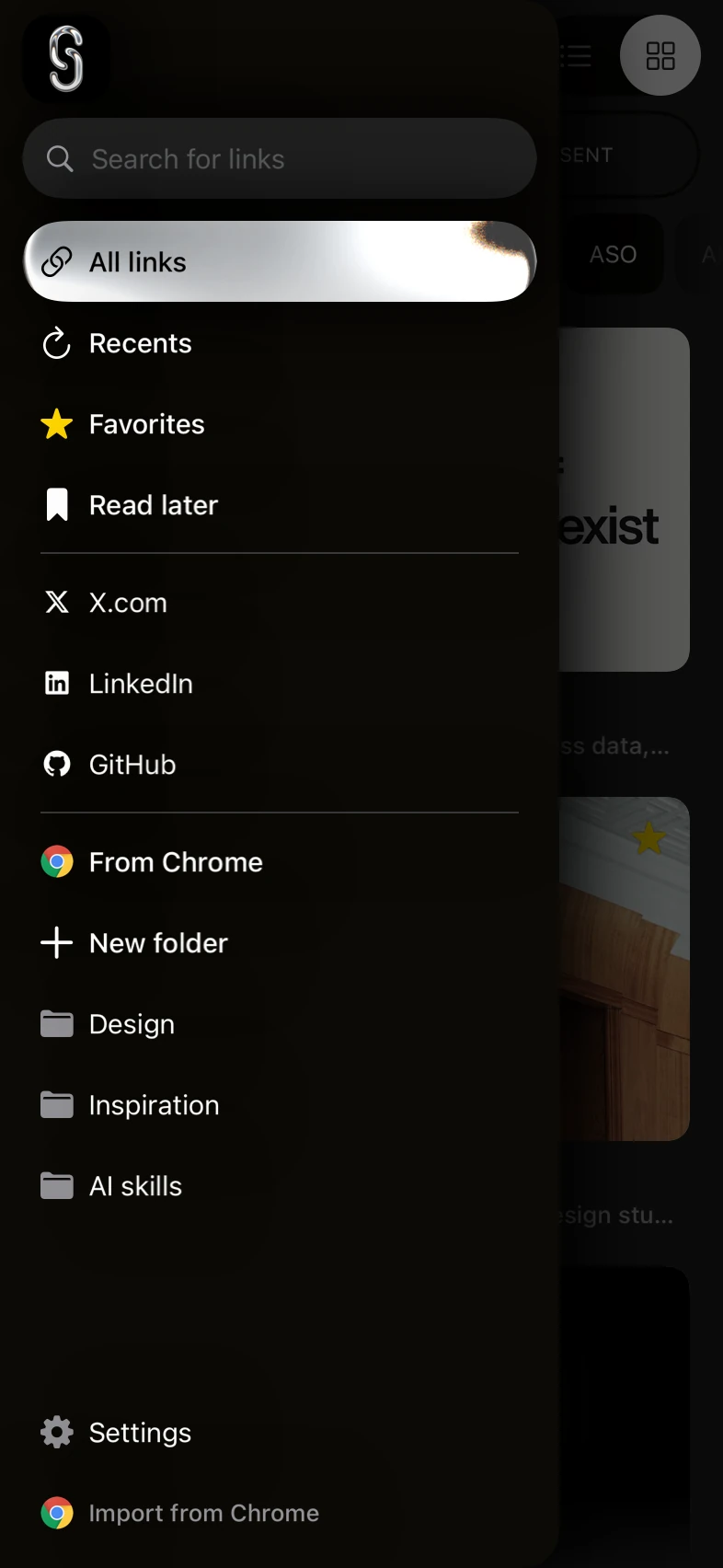
Send the link through Shareling instead of a DM, and open X.com in the sidebar: it lists every link in your library whose site is x.com, the ones you sent and the ones you received, with an All, Received and Sent switch to narrow it. Shareling is a Mac, iPhone and iPad app for sending a link to one specific person. A link you send lands in your library and in theirs, and a link they send you lands in both too, so neither of you copies it into bookmarks by hand.
To send an X post to a friend from an iPhone or iPad:
- On the post, use X's share icon. If Shareling is listed, pick it. If you used Copy link to Post instead, share that text to Shareling from any app that offers the iOS share sheet.
- Type a note in the field that reads "Add a note or add to folder". The note travels with the link.
- Optionally type
#namefollowed by a space to file the link under a folder of your own. A folder works like a tag, so one post can sit under two projects; tags vs folders explains the rules. - Choose the person, or Self to keep it for yourself, and send.
What the share extension does with an X post
Shareling's share extension appears in the iOS share sheet when an app shares one web URL, one web page, or text. It walks every attachment the app hands over and tries three shapes in turn: a URL, a web page with its title, then plain text. The first attachment that yields one wins. If it gets text, such as a copied post with words around the link, it takes the first http or https link in that text and drops one trailing punctuation mark, such as a full stop or comma, that belongs to the sentence rather than the link.
Before the link is saved, Shareling cleans it. It lowercases the host and removes tracking parameters from a fixed list. That list includes twclid and ref_src. Any utm_ parameter goes too. Other parameters stay as they are. The guide to removing tracking from links explains what those parameters do.
How the X.com filter decides what counts
The filter matches a link by its registrable domain, the part of the host a person would call "the site". Shareling lowercases the host, drops a trailing dot and, for a host like x.com, keeps the last two labels, so www.x.com and mobile.x.com both count as x.com.
That rule has edges, and they come from what Shareling chose not to do:
- A t.co link is not an X link to Shareling. The cleaning step runs with no network access and follows no redirects, so a t.co link stays a t.co link, and its site is t.co. Paste the x.com link from Copy link to Post, not a t.co link lifted out of a DM, and it will land under X.com.
- An old twitter.com link does not appear under X.com. The filter compares against x.com only. Search still finds it: library search matches every word against the title, URL, note and page description.
- One link, one person. In Shareling a channel is between exactly two people, and one send goes to one of them, so sending a post to three friends is three sends, each with its own note. The library shows the same page once even when it came from more than one of them.
Who sees what
The note travels with the link; your folders never do. Folders in Shareling are private to the person who applied them, so your friend sees the post and your note, not how you filed it, and you never see theirs. Shareling also never tells you whether your friend has opened the link: that state is stored on their side and never sent to you.
That is the trade against X. A DM thread shows the conversation around a post, and X Bookmarks can hold posts you never sent anyone. Shareling keeps only links, but every X post that passes between the two of you, in either direction, sits in one filtered list beside your LinkedIn and GitHub links.
The guides index lists the other Shareling walkthroughs.
Frequently asked questions
How do I send an X post to one person?
Open the share icon on the post, choose Send via Direct Message, type a name or pick a suggested account, optionally add a comment, then send. On iOS you can pick the recipient straight from the quick-share list.
Can I DM an X post to someone who doesn't follow me?
Only if their settings allow it. On X you can message anyone who follows you. Someone who does not follow you can be messaged only if they accept messages from everyone, or from Verified users when you are Verified, or if you have messaged each other before.
Why does a link I sent in an X DM start with t.co?
X automatically shortens every link shared on X, including links in Direct Messages, to a t.co link. The t.co service counts clicks, and you cannot opt out of it.
Are X Bookmarks private?
Yes. X's help centre says Bookmarks are private and only viewable to you within your X account. Organising them into Bookmark Folders needs a paid X Premium tier, Basic or above.
Does the person I send a link to in Shareling see my folders?
No. Shareling folders are private to whoever applied them and never travel with the link. The note you write when you send does travel.
Send a link to the person you mean it forShareling is a Mac, iPhone and iPad app for sending a link to one person and keeping the links you save, synced through your own iCloud.