
To send a LinkedIn post in a message, click Send at the lower right of the post, choose the people you want it to reach, add a note if you like, and click Send. The post arrives in their LinkedIn inbox as a private message, and ordinary messages can only go to people you are connected with.
This guide covers the steps on desktop and mobile, who you can reach, where saved posts go, how to send a post outside LinkedIn, and how to keep the LinkedIn links a colleague sends you so they don't sink in a message thread. The LinkedIn details come from LinkedIn Help, read on September 24, 2026.
How do I send a LinkedIn post to someone in a message?
Use the Send button under the post: it sends the post as a private message to the people you pick, with an optional message of your own. LinkedIn describes two ways to pass a post on: repost it to your network, or send it in a private message to specific people. This is the second.
On desktop:
- Find the post in your feed.
- Click Send at the lower right of the post.
- A pop-up titled "Send [author's name]'s Post" opens. Type a name, then select the person under Suggested. Add more people the same way.
- Write a message if you want one.
- Click Send.
On the LinkedIn mobile app:
- Tap Send at the lower right of the post.
- Type a name in the Type a name field and select the person.
- Add a message if you want one.
- Tap Send.
The post lands in the recipient's LinkedIn inbox. Depending on their notification settings, LinkedIn may also email it to them.
Sending privately is quieter than reposting. LinkedIn says the list of people who reposted a post "will not display posts that are shared privately", so your message does not show up in that list.
Who can I send it to?
You can send it to your connections. LinkedIn's messaging help is plain about it: "You can only message your connections." To reach someone outside your network you send a message request, or an InMail, which needs a Premium subscription.
A few more limits from LinkedIn Help:
- Several people at once. A group chat starts with two or more first-degree connections and holds up to 50 members. Every member can add or remove people, and anyone who joins later sees the earlier messages. LinkedIn asks that group chats be used for conversations with connections, not mass messaging.
- No published cap on the Send pop-up. The help page for the Send button states no maximum number of recipients. Figures quoted elsewhere could not be confirmed on LinkedIn's own page, so this guide gives none.
- Reposting has its own limits. A post from a LinkedIn Group can't be reposted, and neither can a post that was reposted for connections only. LinkedIn also says it "may limit your ability to repost posts from members you're not connected with." Those limits are about reposting; the Help pages read for this guide do not say they apply to Send.
Where do saved LinkedIn posts go, and can I organise them?
Saved posts go to Saved items, and LinkedIn's help documents no way to organise them. You can save posts and articles from your feed on desktop or in the mobile app:
- Desktop: click the More icon on the post, then Save. To find it again, click Saved Items in the left pane of the homepage, then Saved posts and articles.
- Mobile: tap More, then Save. To find it again, tap your profile picture, then Saved posts.
- To unsave: More, then Unsave.
Some feed items can't be saved at all: job recommendations, follow recommendations, work anniversaries and profile-change updates. Older guides call the section "My items"; LinkedIn's current help page calls it Saved items.
The help page covers saving, viewing and unsaving, and nothing else. It describes no folders, collections, labels or search for saved items, so a saved post sits in one list in the order you saved it. That list belongs to your account alone: LinkedIn's help describes no saved list two people share. A post a colleague sent you lives in that conversation until you save it yourself.
How do I send a LinkedIn post outside LinkedIn?
Copy the post's link and paste it wherever you want to send it. LinkedIn's steps:
- Desktop: click the More icon at the top right of the post, then Copy link to post.
- Mobile: tap More, then Share via, then Copy (or Copy to clipboard).
Two things about that link are worth knowing before you rely on it:
- LinkedIn builds a post's URL from details in the post: its hashtags, its first 25 characters, or the author's custom public profile URL.
- If the author edits the post, the URL changes but the old one still redirects. If the author changes their custom public profile URL, the post URL changes and the old one does not redirect, for privacy reasons. A link you saved months ago can stop working that way, and nothing warns you.
A link copied out of an app can also carry tracking parameters: name=value pairs after the ?, such as utm_source or utm_medium, that tell a site where a click came from. Google Analytics describes utm_ parameters as campaign data, and the page loads the same without them. LinkedIn's help pages say nothing about which parameters its share links carry, so check the link you copied: if you see utm_ pairs, you can delete them before you send. Remove tracking from links walks through doing it by hand.
How do I keep LinkedIn links a colleague sends me?
Keep them somewhere that collects links rather than conversations. On LinkedIn itself, that means opening each post a colleague sent and saving it, which puts it in one unsorted list. Shareling is designed the other way round: a colleague sends the link straight to you, both of you keep it in one library, and a LinkedIn filter in the sidebar shows every LinkedIn link in that library in one place.
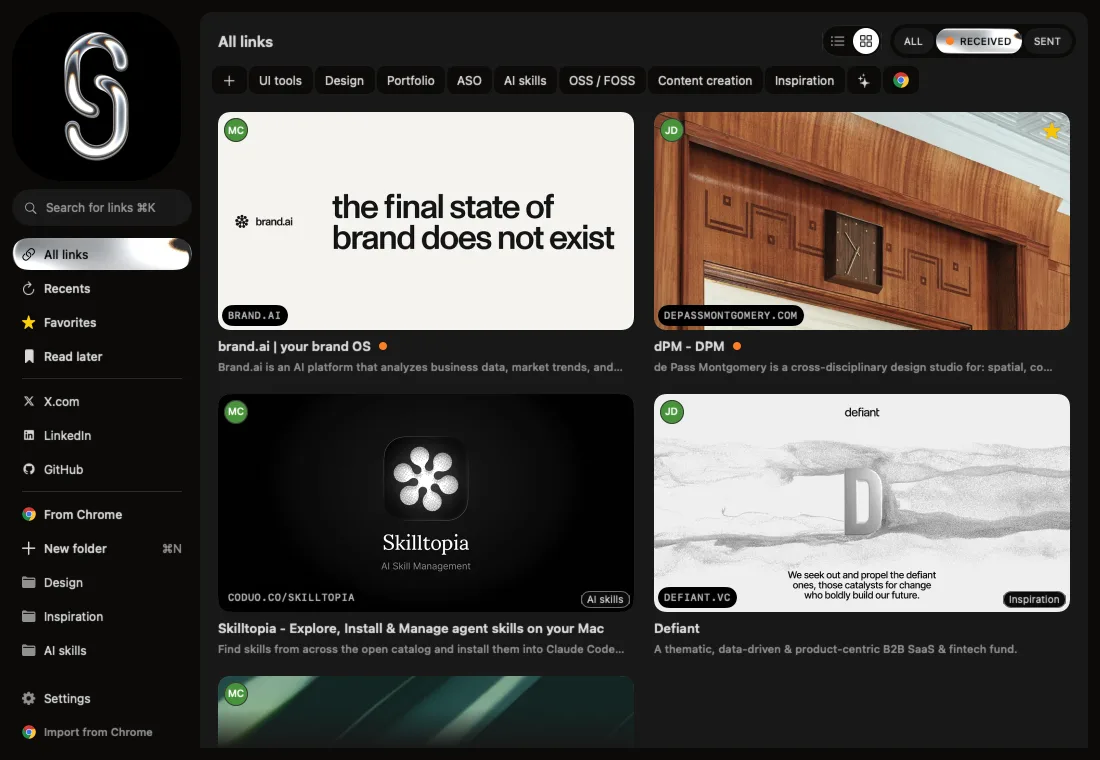
Shareling is a Mac, iPhone and iPad app for sending a link to one specific person and keeping your own. Here is how LinkedIn links behave in it, from its code.
Sending. On the iPhone or iPad, open the post in Safari, tap the Share button, and choose Shareling. The sheet takes one link at a time. Pick the person under Send to, or leave Self selected to keep it yourself, then tap Send. (Delivery to the other person waits on iCloud sync, which the last paragraph of this section explains.) Anything you type in the note travels with the link. Type # and a name, then a space, and it becomes a folder instead. Folders are private: the person you send to never sees them. A link you send reaches one person; there are no groups, so passing a post to three colleagues is three sends, each with its own note.
Cleaning. Before Shareling saves or sends any link, it removes every parameter whose name starts with utm_, and 24 other named tracking parameters such as fbclid, gclid and msclkid. It keeps every other parameter in the link. The clean runs on every link, LinkedIn or not, and it works on the text of the link alone, with no network request.
Finding. The LinkedIn filter matches any link whose site is linkedin.com, so www.linkedin.com links count. Combine it with the Received side of the All / Received / Sent pill and you see only the LinkedIn links people sent you; Sent shows the ones you passed on. If two colleagues send you the same post, the library shows it once.
What you won't get. Shareling has no read receipts, so your colleague can't tell when you opened their link, and you can't tell when they opened yours. The LinkedIn filter goes by the link's site alone: a post shared through a shortened link on another domain lands under All links instead. And the part that carries a link from your device to your colleague's, live iCloud sync, is not switched on in the current code. The architecture notes list it as later work, so until it ships a link you send stays in your own library, cleaned and filed under LinkedIn, and LinkedIn's own Send is how the post reaches your colleague today.
For what Shareling costs, see plans.
Frequently asked questions
Does the author see that I sent their post in a message?
LinkedIn's help says the list of people who reposted a post does not show posts that were shared privately. It says nothing more about what the author sees, so this guide makes no further claim.
Can I send a LinkedIn post to someone I am not connected with?
Not as an ordinary message. LinkedIn says you can only message your connections; to reach anyone else you send a message request, or an InMail, which needs a Premium subscription.
Can I sort my saved LinkedIn posts into folders?
LinkedIn's help page on saving posts covers saving, viewing and unsaving, and describes no folders, labels or search for saved items.
Why did a LinkedIn post link stop working?
If the author edits the post, the old link still redirects. If the author changes their custom public profile URL, the post link changes and the old one does not redirect, for privacy reasons.
Does Shareling remove tracking from LinkedIn links?
Shareling removes any parameter starting with utm_, plus 24 other named tracking parameters, from every link before it saves or sends it, whichever site the link is from. It keeps every other parameter in the link.
Send a link to the person you mean it forShareling is a Mac, iPhone and iPad app for sending a link to one person and keeping the links you save, synced through your own iCloud.