iOS has no built-in way to use one iPhone as another iPhone's camera remote. To see a second iPhone's camera and take its picture from your own phone, you need an app installed on both phones.
Apple does give you several ways to take a photo without touching the phone, and one of them shows a live picture. This guide covers those first, then what changes when the remote is a second iPhone.
Can one iPhone control another iPhone's camera?
Not with anything built into iOS. We searched Apple's support pages on 2026-09-24 and found no feature that shows one iPhone's camera on another iPhone and fires its shutter. The features that sound close do something else.
- Continuity Camera turns an iPhone into a webcam for a Mac, not for another iPhone.
- Control Nearby Devices, an Accessibility setting, sends button presses to another Apple device on the same Apple Account and Wi-Fi. Apple's page describes no camera preview.
That leaves Apple's single-phone options below, or an app that runs on both iPhones.
What does Apple offer instead of a second iPhone?
Apple offers four remotes for the iPhone camera, and only the Apple Watch shows you the picture. They are:
- The self-timer. In the Camera app, open the camera tools, tap Timer, and pick 3, 5 or 10 seconds. Tap the shutter and get into the frame.
- The volume buttons. Pressing either volume button takes a photo. Small Bluetooth shutter buttons use the same trick, so they work with the built-in Camera app, but they show you nothing.
- AirPods. With iOS 26 and a supported model, such as AirPods 4 or AirPods Pro 2 or 3, turn on Settings > [your AirPods] > Camera Remote. Then press the stem to take a photo, or to start a video in Video mode. AirPods only trigger the shot, so you can't see the frame.
- Apple Watch Camera Remote. Open the Camera app on the iPhone, then Camera Remote on the watch. The watch shows the iPhone's picture. You zoom with the Digital Crown, tap the preview to set exposure, and tap the shutter. It uses a 3-second timer by default, and Apple says the watch has to stay within normal Bluetooth range of the iPhone, which it puts at about 33 feet or 10 meters.
If you own an Apple Watch, try it first. It costs nothing extra and it's the only Apple option where you see the frame before the shot. The catch is the screen size. You are judging a photo on your wrist.
How do apps turn a second iPhone into a camera remote?
Remote camera apps split the job across two phones. One runs the camera, and the other shows its picture and sends the commands. Both phones need the same app. As of 2026-09-24, the App Store has several, and their listings show how differently they connect and what they send:
- Blackmagic Camera added remote control of several iPhones in version 2.0, over a wired or Wi-Fi network. It is a video production app, and one controller iPhone can run zoom, focus and recording on several iPhones at once.
- Remote Shutter: camera connect says it links the two devices directly with no Wi-Fi network needed, and lists a live preview, a timer, flash and front camera switching.
- Remote Camera Control via Air uses peer-to-peer Wi-Fi and lists a range of about 20 feet, with deep manual controls.
- SayCheese uses Bluetooth and also pairs an iPhone with Android or a watch.
- PairCamera lists zoom, focus, flash, a timer and front or back camera, but its last update was in 2019.
These are the listings' own claims, read on that date. Check each app's page before you pick one, since features and pricing change.
How does Futari use a second iPhone as the remote?
Futari gives each iPhone one job. The Shoot phone runs the back camera. The See phone shows the Shoot phone's live view and works as its remote.
The See phone can send the Shoot phone exactly three commands:
- Shutter. In photo mode it takes the photo. In video mode it starts the recording, and the same button stops it.
- Zoom. Tap the
1xbutton to step to the next zoom level, or pinch the live view. - Focus and exposure. Tap the live view where you want the camera to focus and expose.
Everything else is fixed or set on the Shoot phone. You pick photo or video on the Shoot phone, and the flash is always on Auto.
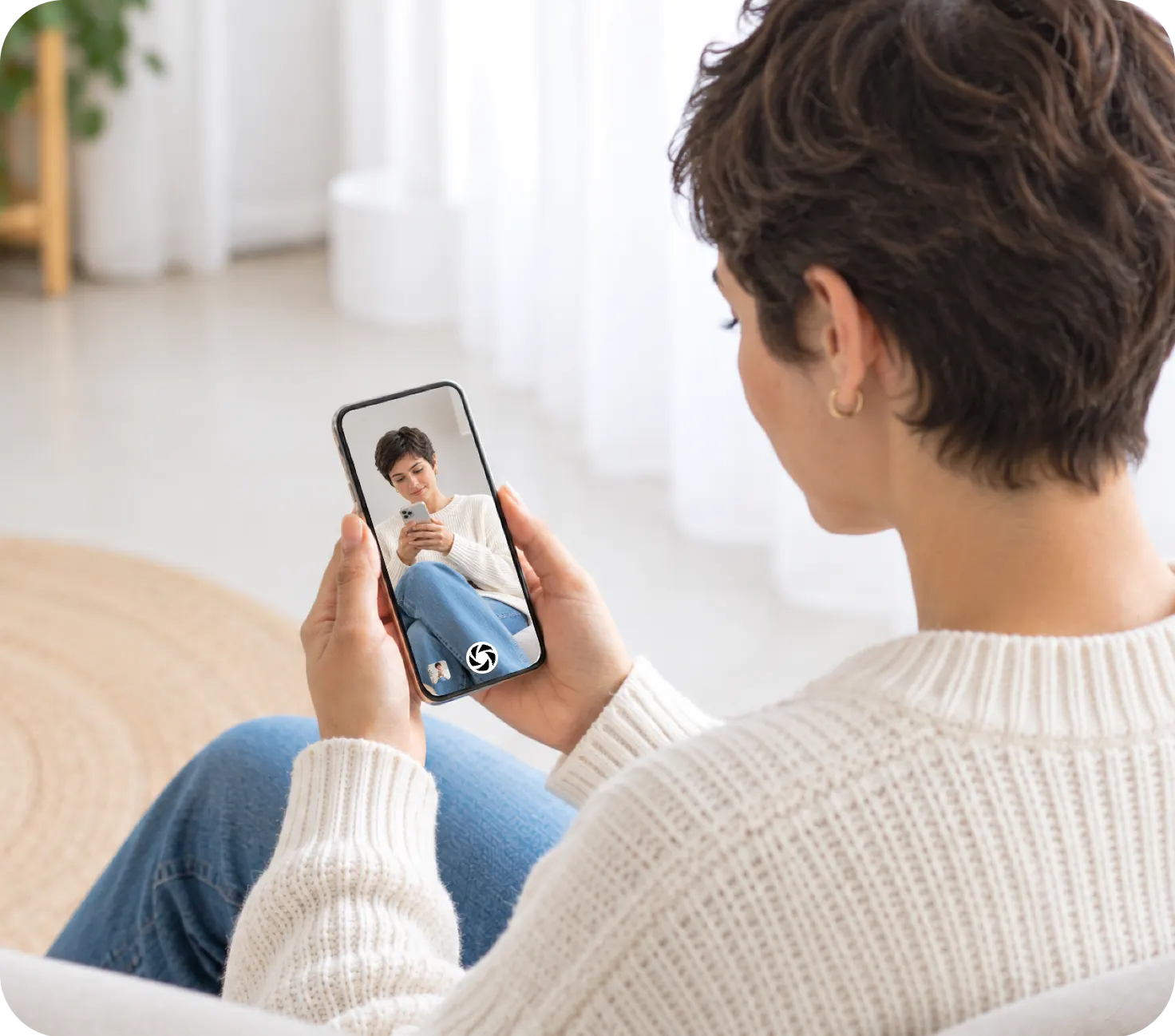
The live view on the See phone is the whole camera frame, fitted to the screen with black bars where the shapes differ, so nothing is cropped. It streams at about 1080p and 30 frames a second, and drops to 720p when the connection stays weak.
Every shot is saved to a "Futari" album in Photos on both phones, once each phone allows Photos access, so the person holding the remote leaves with the photo too. Photos, videos and the live view go straight from one iPhone to the other and aren't uploaded to a server. The app does send anonymous usage events, such as when a pairing or a shot happens, with no media and no personal data.
How do I set up the second iPhone as the remote?
You need two iPhones on iOS 26, both with Futari, on the same Wi-Fi network. Then:
- Open Futari on both phones. Each one searches for the other.
- On one phone, tap the other phone's name when it appears. The other phone shows "wants to connect"; tap Accept.
- Tap See or Shoot on either phone. One tap sets both, and the other phone takes the other role.
- Put the Shoot phone where you want the camera, on a tripod or propped against something.
- Frame, zoom and focus from the See phone, then press its shutter.
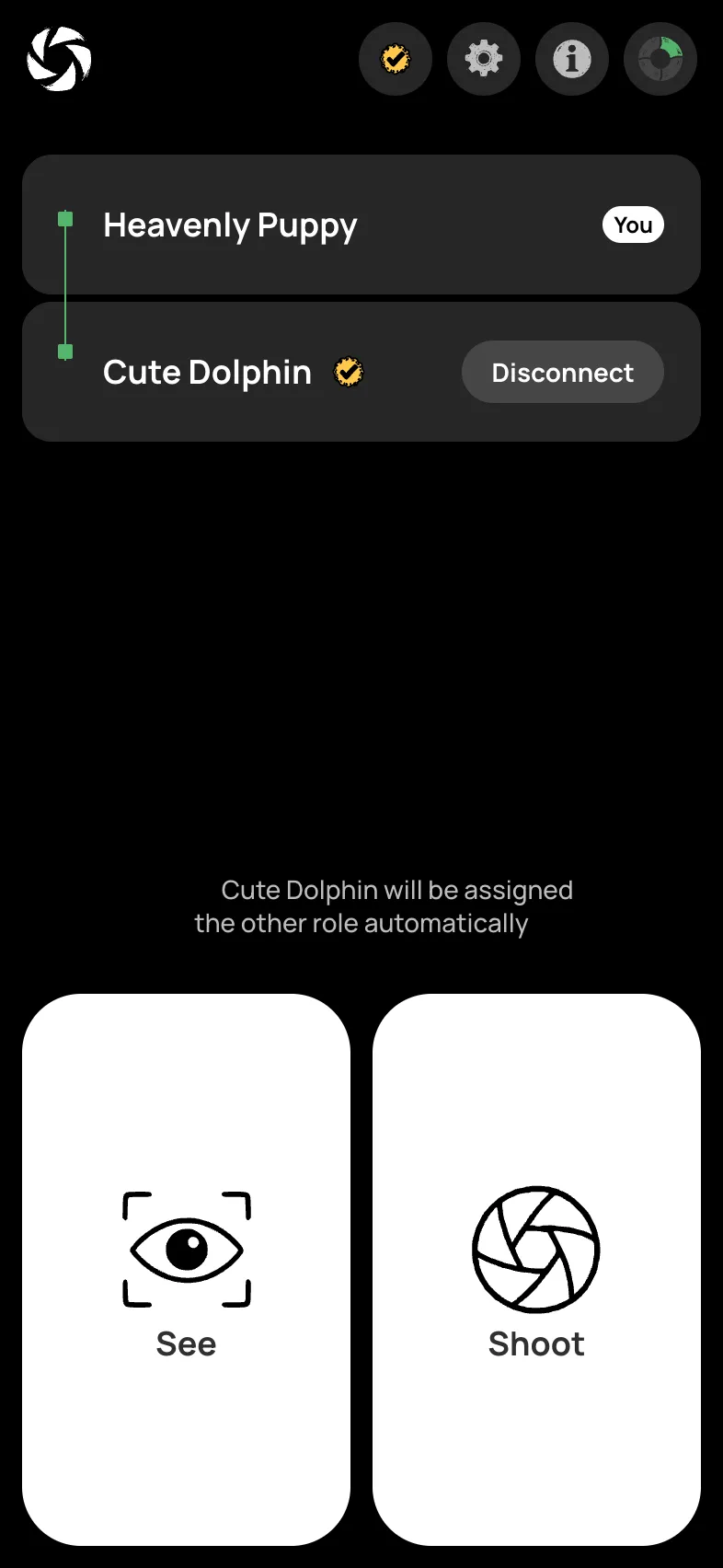
Pairs you have connected before reconnect on their own, with no taps on either phone. To swap jobs, tap Switch to see or Switch to shoot on either phone, and both phones change roles. The Switch button is hidden while a video is recording.
Futari needs a subscription on at least one of the two phones, and it covers both phones for that session. See pricing.
Can I use an old iPhone as the camera remote?
Yes, if it runs iOS 26. Futari requires iOS 26 and runs on iPhone only. Apple's list of iPhones compatible with iOS 26 starts at the iPhone 11 series and also includes the second and third generation iPhone SE. An older iPhone that stops at an earlier iOS version can't run Futari in either role.
An old phone is a good fit for the See role, since it doesn't use its own camera. Futari keeps the screen from auto-locking while the app is open, so plug the old phone in if you plan a long session.
What can't a second iPhone do as a Futari remote?
It can't do anything beyond shutter, zoom, and focus and exposure. Futari removed the rest on purpose when the viewfinder was redrawn in September 2026, so these don't exist in the app on either phone:
- a self-timer or burst
- flash control
- the front camera
- portrait mode or filters
There are also limits on the connection:
- Both phones need to be on the same Wi-Fi network.
- If one phone switches to another app, the pair ends on both phones. It reconnects when both are back in Futari.
- If the link drops, the See phone shows "Waiting…" after 5 seconds and keeps the last frame it received. After 15 seconds with no signal the pair ends. A video that was recording keeps recording until someone stops it.
- There is no iPad or Android version.
If you need a timer, flash or the front camera from the remote, one of the apps above may suit you better. If what you want is to see the frame from where you are standing and take the shot yourself, that is all Futari's remote does. More at coduo.co/futari.
Frequently asked questions
Can I control my iPhone camera from another iPhone without an app?
No. Apple's remote options for the iPhone camera are the self-timer, the volume buttons, AirPods and the Apple Watch Camera Remote. None of them lets a second iPhone show the camera's picture or take the shot, so both phones need a third-party app.
Can I use an old iPhone as the remote in Futari?
Only if it runs iOS 26, because Futari requires iOS 26 on both phones. Apple lists the iPhone 11 series and later, plus the second and third generation iPhone SE, as compatible with iOS 26.
What can the remote iPhone control in Futari?
Three things. It takes the photo or starts and stops a video, changes the zoom, and sets focus and exposure where you tap on its live view. Flash, a timer and the front camera are not available from either phone.
Do both iPhones need to be on the same Wi-Fi for Futari?
Yes. Futari's setup asks both phones to join the same Wi-Fi network. The live picture and the shots then go directly from one phone to the other, not through a server.
Do both iPhones need a Futari subscription?
No. At least one of the two phones needs a subscription, and it covers both phones for that session.