To take a group photo with an iPhone and be in it yourself, stand the phone somewhere steady, set the Camera timer to 3, 5 or 10 seconds, tap the shutter and join the group. If you own an Apple Watch or supported AirPods you can fire the shutter from where you stand, and if the group has a second iPhone, Futari turns it into a live viewfinder and shutter you hold while you stand in the shot.
The person who takes the group photo is usually the one missing from it. Apple gives you three ways around that, and each one leaves the photographer with a small screen or no screen at all. A second iPhone fixes that part.
How do you take a group photo with the iPhone timer?
Use the timer in the Camera app, which gives you 3, 5 or 10 seconds between tapping the shutter and the photo. Apple's steps:
- Put the iPhone on a stable surface or a tripod, pointed at where the group will stand.
- Open Camera.
- Tap, or swipe up from, the camera modes at the bottom of the screen to open the camera tools.
- Tap Timer, then tap 3, 5 or 10.
- Frame the group on the screen, tap the Shutter button, and get into the frame before the countdown ends.
To turn the timer off later, open the camera tools again, tap Timer and tap the timer icon.
The timer needs nothing extra, which is why it is the default answer. Its weakness shows up with groups. Once you tap the shutter you can't see the screen, so you find out who was cut off, who blinked and whether you ended up behind someone only after you walk back to the phone. Ten seconds is also a long time for a row of people to hold a smile.
Can you take a group photo with iPhone without the timer?
Yes. Apple Watch and AirPods can both fire the iPhone's shutter from a distance, and the Apple Watch also shows you the frame.
Apple Watch Camera Remote. Open Camera on the iPhone, then open the Camera Remote app on the watch. The watch screen works as the viewfinder: you frame the shot on your wrist, turn the Digital Crown to zoom, tap the preview to adjust exposure and tap the Shutter button. By default the watch takes the shot with a 3-second timer, which you can turn off in its settings, where you can also pick the front or rear camera and set the flash. Apple says the watch has to stay within normal Bluetooth range of the iPhone, about 33 feet or 10 meters. The photo saves to the Photos app on the iPhone.
AirPods. On iOS 26, AirPods 4, AirPods 5, AirPods Pro 2, AirPods Pro 3 and AirPods Max 2 can take a photo in the Camera app. Turn it on in Settings under your AirPods' name, in Camera Remote, then press the stem, or the Digital Crown on AirPods Max 2. You get no preview this way, so the AirPods replace the tap and keep the timer's blind spot.
The volume buttons also take a photo, but only while you are holding the phone, so they don't help the person who wants to be in the picture.
| Method | What you need | Can you see the frame from the group? | The catch |
|---|---|---|---|
| Camera timer | The iPhone | No | You check the photo only after it is taken |
| Apple Watch Camera Remote | A paired Apple Watch | Yes, on the watch screen | Framing on a watch-sized screen, about 10 m range |
| AirPods | Supported AirPods, iOS 26 | No | A trigger only |
| Futari | Two iPhones on iOS 26 with the app, on one Wi-Fi | Yes, on a full phone screen | Both phones need the app, one needs a subscription |
How do you take a group photo with two iPhones?
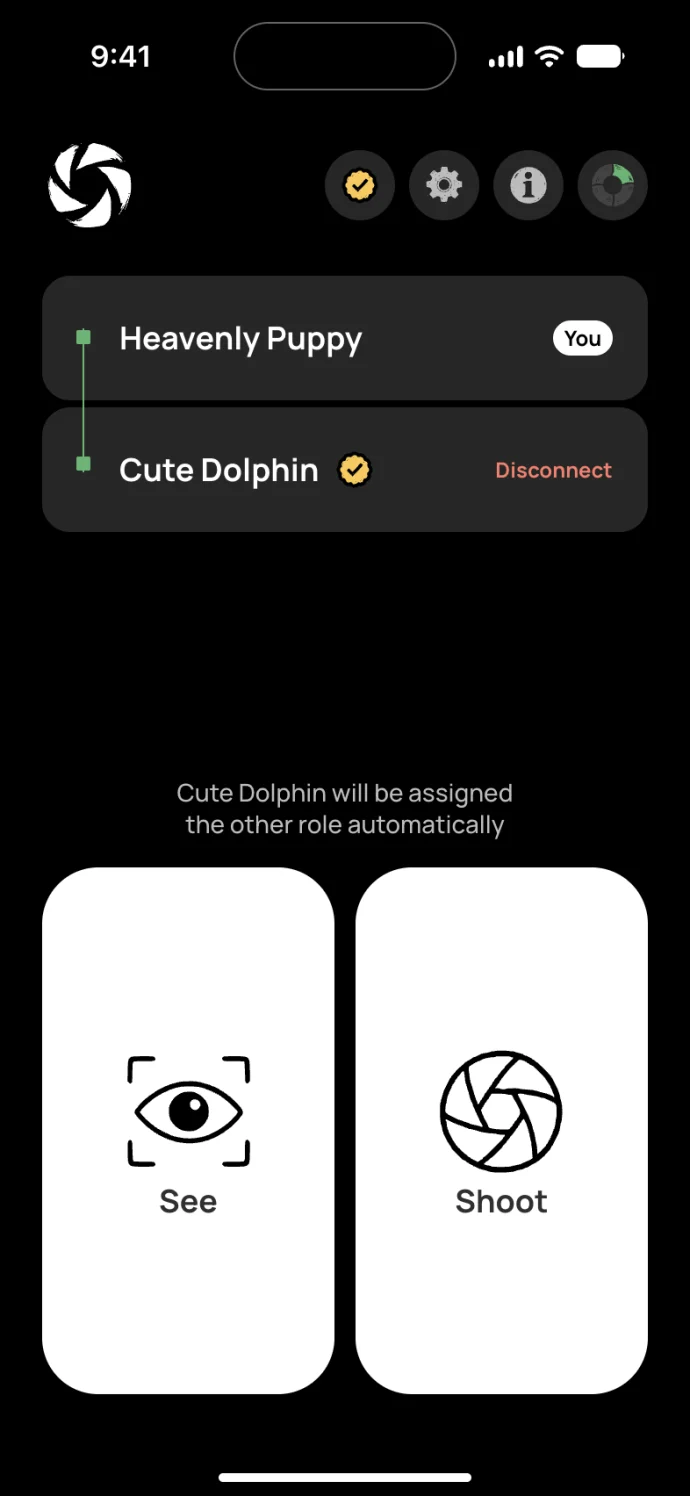
Put one iPhone on a steady surface as the camera and hold the other in the group as its viewfinder and shutter. iOS has no built-in way for one iPhone to show or fire another iPhone's camera, so this takes an app on both phones. Futari calls the two roles Shoot and See. Shoot is the phone taking the picture, and See shows Shoot's camera live and sends it the shutter.
- Install Futari on both iPhones and join both to the same Wi-Fi network.
- Open Futari on both. Each phone lists the other; tap it on one phone and accept on the other.
- On the phone you will hold, tap See. The other phone becomes Shoot with the same tap.
- Stand the Shoot phone on a ledge, table or tripod, facing where the group will stand.
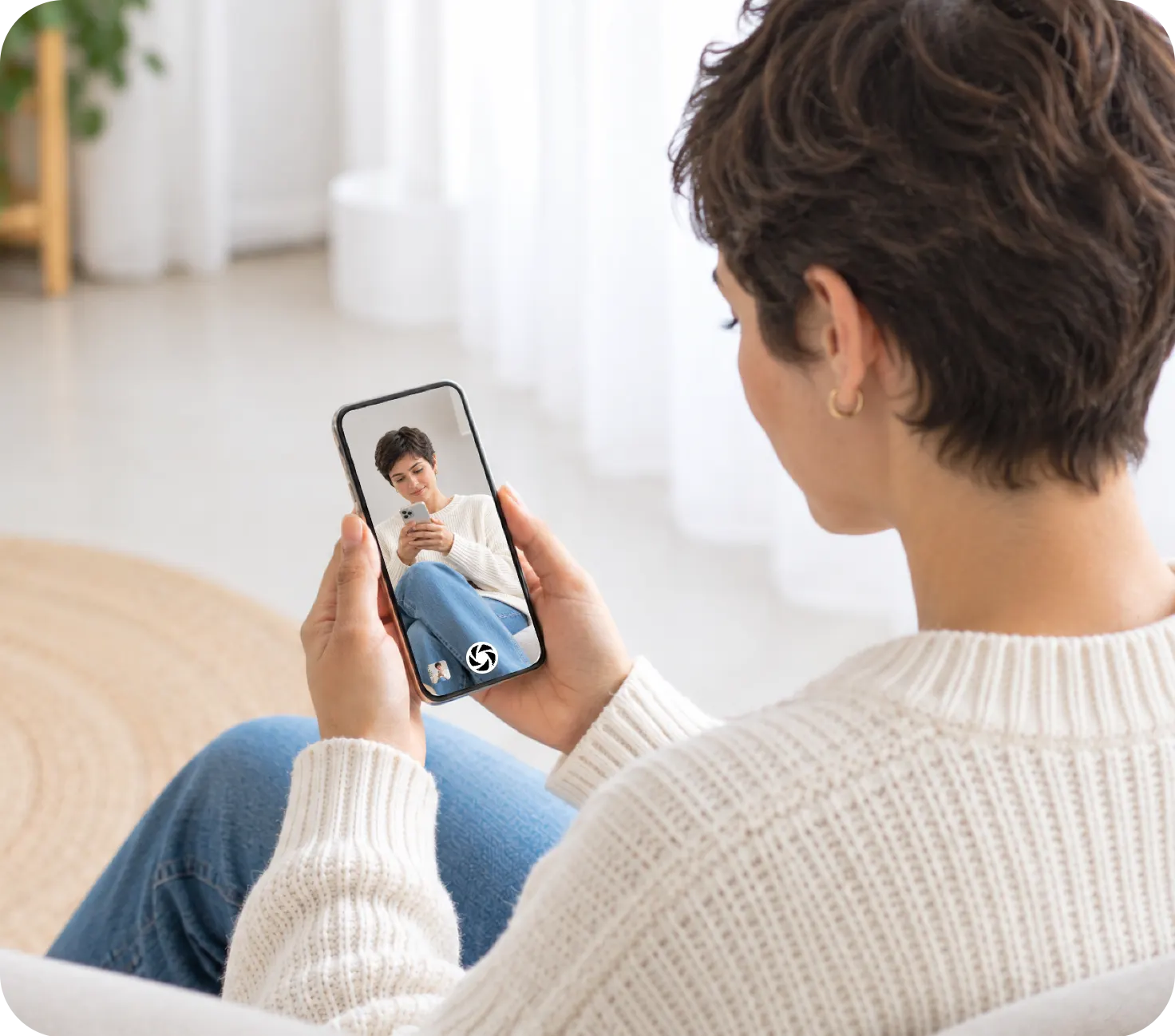
- Walk into the group with the See phone. Its screen shows exactly what the Shoot phone's back camera sees.
- Move people on what you see: who is hidden, who is cut off at the edge, whether you are in frame yourself.
- Tap the live view on a face to set focus and exposure on the Shoot phone, and use the zoom control if the group needs to fit tighter or wider.
- Tap the shutter on the See phone when everyone is ready.
Futari is not on the App Store yet. More about the app is on the Futari page.
Where does the group photo end up?
On both phones. The Shoot phone saves the photo to its own library and sends the full-resolution file to the See phone, which saves it too. Each phone puts the shot in an album called Futari in Photos. That album is the whole record; the app keeps no copy of its own.
So the photographer who was standing in the group gets the picture on the phone in their hand as soon as it comes across from the Shoot phone, without an AirDrop afterwards. Tap the last-shot thumbnail on either phone to page through the Futari album inside the app, newest first. For the rest of the group, share it the way you normally would.
How do you get everyone in focus and in the frame?
Tap the face in the middle of the group on the See phone's live view, and Futari sets focus and exposure there on the Shoot phone. Focus and exposure, zoom and the shutter are the only three commands the See phone sends. The Shoot phone uses its back camera, with the richest multi-lens camera the phone has, and on a phone with an ultra-wide lens the zoom steps include it, for a group that won't fit at 1x.
A few habits help whichever method you use:
- Put the camera at about eye height rather than on a low table.
- Leave some space around the group at the edges of the frame.
- Take several shots. With a timer each retake means another walk back to the phone; with a See phone it is another tap.
What can't Futari do for group photos?
Futari can't set a timer, shoot landscape or use the front camera, and it needs two iPhones on the same Wi-Fi. Every shot is 9:16 portrait and the app runs in portrait only, so for a long row of people, move the Shoot phone further back.
The full list:
- No timer and no burst. The Futari team deleted both. The person on the See phone decides when to shoot by watching.
- Back camera only. There is no front-camera option, and the flash stays on Auto with no control for it.
- Your hand is in the picture. The See phone sits in the photographer's hand inside the group, so hold it low, or behind the person in front of you, when you tap. An Apple Watch hides better.
- Two iPhones on iOS 26. Futari runs on iPhone only, needs iOS 26 on both phones, and has no iPad or Android version.
- One Wi-Fi network. The app's own help tells you to join both phones to the same Wi-Fi, so a park or hilltop without one is a job for the timer or the watch.
- Keep the app open. Futari keeps the screen from auto-locking, but if either phone leaves the app, the pair ends on both phones and reconnects when both are back in Futari.
- A subscription on one phone. At least one of the two phones needs a subscription, and it covers both phones for that session. See Futari pricing.
Which way should you take the group photo?
Use the timer when you have one phone and a steady place to put it, and accept a couple of retakes. Use the Apple Watch when you own one and want to see the frame without a second phone. Use two iPhones with Futari when the group already has a second iPhone and the photographer wants to see the whole frame at phone size, choose the moment, and walk away with the photo on their own phone.
Frequently asked questions
How do I take a group photo on iPhone and be in it?
Stand the iPhone on a steady surface or tripod, open Camera, open the camera tools, tap Timer, choose 3, 5 or 10 seconds, tap the Shutter button and walk into the frame. Apple Watch Camera Remote and supported AirPods can fire the shutter from a distance instead.
Can I use another iPhone as the remote for a group photo?
Not with anything built into iOS. Apple's remote options are the Apple Watch Camera Remote app and AirPods, and none of them shows one iPhone's camera on another iPhone. An app such as Futari does that, with both phones running the app on the same Wi-Fi network.
How far away can the Apple Watch be when it works as a camera remote?
Apple says the watch has to be within normal Bluetooth range of the iPhone, about 33 feet or 10 meters.
Does Futari have a self-timer for group photos?
No. Futari removed its timer on purpose, because the person holding the See phone watches the frame and taps the shutter when everyone is ready. It also has no burst mode, no front camera and no flash setting.
Who gets the group photo when I use Futari?
Both phones in the pair. The Shoot phone saves the photo and sends the full-resolution file to the See phone, and each phone puts it in an album called Futari. Anyone else in the group gets it the usual way, by AirDrop or a shared album.