
Shareling is a Mac notch app for sending links: drag a link toward the notch at the top of the screen and drop it on a person to send it, on yourself to keep it, or on a new person to invite them. Nothing sits in the notch until you start dragging, so the rest of the time the top of your screen looks the way it did before.
Shareling is a Mac, iPhone and iPad app for sending a link to one specific person and keeping your own links in one library. The notch drop is how the Mac app sends. It is designed and prototyped, and it comes with Shareling at launch; the pictures on this page are design boards, not screenshots of a released app.
What does Shareling do with the MacBook notch?
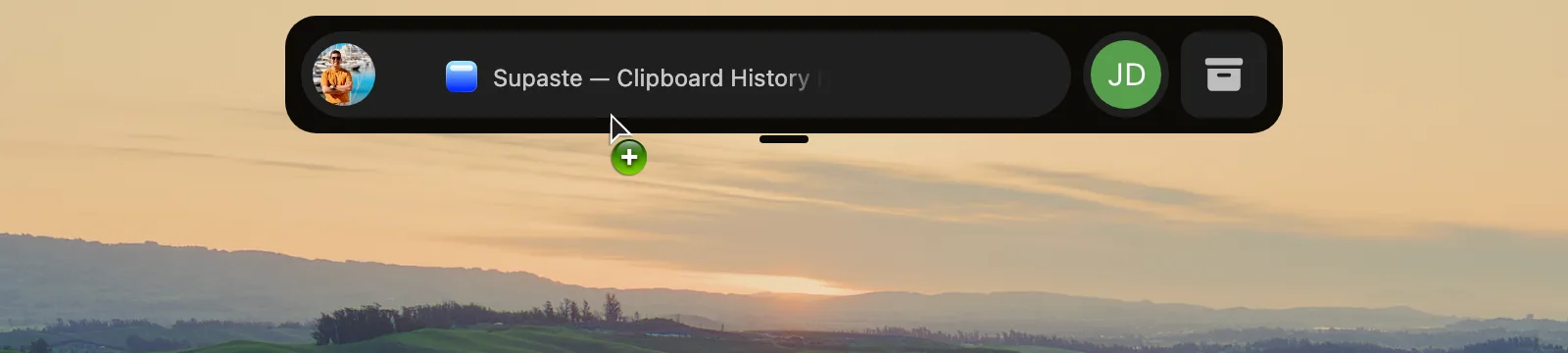
It makes the notch the place you drop links. Shareling's notch surface is a capsule at the top center of the screen with three states: hidden, compact and open. While hidden it draws nothing. When you drag a link, it opens under the cursor and shows the people you share links with as avatar bubbles.
One drop sends a link and files it: it lands in your library and in the other person's, with no second step to save it. In Shareling's library, All Links, Sent, Received and Recents are filters over those links, so a link you dropped on a friend last month is under Sent, and one they dropped on you is under Received.
How do I send a link by dropping it on the notch?
Drag the link to the top of the screen and let go over the person's bubble. Step by step, in the design:
- Start dragging a link in Safari or Chrome. Both browsers were tested end to end in Shareling's prototype.
- The capsule opens as soon as the drag begins, under the cursor and before it has travelled far.
- Hold the link over a destination. The highlight follows the cursor from one target to the next, and the capsule shows the page's title.
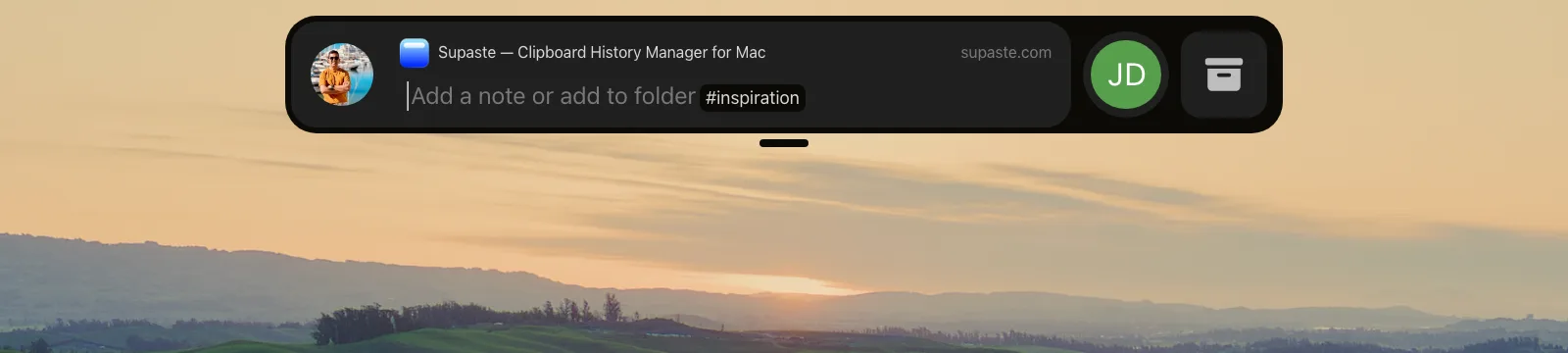
- Let go. The capsule now shows the page title, the site's domain and a field that reads "Add a note or add to folder".
- Type a note for the other person, or type
#and a folder name to file the link under one of your own folders.
Sent it to the wrong person? Unsend deletes a link you sent, within one hour of sending it.
Does it need special permissions or an always-on strip?
No to both. The first design assumed Shareling would need a thin window always present at the top of the screen, a strip that could receive drags while staying out of the way. Shareling's prototype showed that framing was wrong, and the design dropped the strip.
What Shareling does instead: it watches for mouse drags anywhere on screen, and the moment one starts it puts up a borderless window at a level above the macOS status bar level. Before a drag there is no window at the top of the screen at all, so there is nothing that has to be invisible and still catch drops. In the prototype the window was on screen within 3 to 4 milliseconds of the first drag event.
The prototype also settled the permission questions:
- Accessibility: not needed. The drag monitor installed and fired with Accessibility access not granted, and no prompt appeared.
- App Sandbox: the notch drop works inside it. The monitor fired, and the sandbox did not stop Shareling reading the dragged link. The sandboxed reveal took 3 ms against 4 ms without the sandbox.
- Screen Recording: not settled. That permission was already granted on the test Mac, so the prototype could not show it is irrelevant.
Two more rules shape how it behaves. Shareling finds the notch through the screen's public safe-area measurements, never a hard-coded size. And it never resizes or animates the window inside a drag callback; target changes are debounced and window changes happen outside the drag, because doing that work mid-drag stalls the drag.
What can I drop, and where can it go?
You drop a link, and it goes to exactly one of three places:
- A person: the link is sent to them. It appears in their library and in yours.
- Self: you keep the link for yourself, with no one else involved.
- New person: you invite someone you do not share links with yet.
One drop, one destination. Shareling has no multi-select and no groups: a channel is between exactly two people, so sending a link to three friends is three drops, and each drop can carry a different note.
What travels with the link is fixed. The note you type goes to the other person with the link. Your folders never do; they are private to you, and theirs are private to them. Shareling also never tells you whether they opened it: read state stays on their side, and there are no read receipts.
What if my Mac has no notch?
The drop still has a place to land: Shareling's notch surface is a capsule at the top center of the screen, and the prototype that proved the reveal ran on a Mac display with no notch. That test used macOS 26.5.2 on a single 1440×900 display, where the reveal, the tracking and the drop all worked.
Shareling's own research lists what that test did not cover, and the list is worth knowing before you rely on it:
- a notched MacBook Pro, the hardware this page is named after
- a MacBook with an external display attached, and other multi-display setups
- a second desktop Space (a full-screen app's Space did work)
The notched run is the one Shareling's research names as the step between "works with caveats" and "works". On iPhone and iPad there is no notch drop at all: Shareling sends from the system share sheet there, since the gesture has no iOS equivalent and phones are where most links are found.
What happens to a link after the drop is on the sending to one person page.
Frequently asked questions
Does Shareling need Accessibility permission to use the notch?
No. In Shareling's prototype, the mouse-drag monitor that reveals the notch surface installed and fired with Accessibility access not granted, and no permission prompt appeared, including under the App Sandbox.
Does the notch drop work when an app is full screen?
In Shareling's prototype, yes. With a full-screen app frontmost, the drop window revealed, followed the drag and accepted the drop. Multiple displays and a second desktop Space have not been tested yet.
Can I drop one link on several people at once?
No. In Shareling one drop goes to one destination, and there are no groups. Sending a link to three people is three drops, and each can carry its own note.
Does the person I send a link to see my folders?
No. Shareling folders are private to whoever applied them and never travel with the link. The note you write when you drop it does travel.
Is there a notch drop on iPhone or iPad?
No. The notch gesture has no iOS equivalent, so Shareling on iPhone and iPad sends links through the system share sheet instead.
Send a link to the person you mean it forShareling is a Mac, iPhone and iPad app for sending a link to one person and keeping the links you save, synced through your own iCloud.