
To import Chrome bookmarks into Shareling, choose File > Import Chrome Bookmarks… in the library window on your Mac and pick the Bookmarks file from your Chrome profile folder. Every folder a bookmark sits in becomes one of its Shareling folders, and running the import again adds nothing new.
Years of Chrome bookmarks usually mean years of folders, and some of the same pages saved twice. This page explains what the importer does with each bookmark, based on Shareling's own source code: which bookmarks come across, how folders turn into labels, how it spots duplicates, and what it leaves out.
How do I import my Chrome bookmarks into Shareling?
You import them from the Mac app's File menu, with Chrome's Bookmarks file as the input.
- Open Shareling's library window. The File menu item only exists while that window is open, because Shareling otherwise lives in the menu bar.
- Choose File > Import Chrome Bookmarks….
- In the file panel, select Chrome's
Bookmarksfile. For your first Chrome profile it is at~/Library/Application Support/Google/Chrome/Default/Bookmarks. Later profiles live in folders namedProfile 1,Profile 2and so on, andchrome://versionshows the "Profile Path" of the profile you are using. Where Chrome keeps the Bookmarks file on a Mac covers profiles and the file format in more detail. - Read the alert. It says how many links were added, how many were already in your library and how many were skipped, in the form "N added, N already in your library, N skipped."
The file has no extension, even though it is JSON inside. Shareling's file panel accepts plain data files for exactly that reason; without it, the panel would grey the file out. Shareling gets access to the one file you pick and nothing else in your Chrome folder.
Two limits apply. Shareling reads this JSON file, not the HTML file that Chrome's Export Bookmarks produces; an HTML export is not JSON, so the alert reports that the bookmarks could not be imported. And the importer is on the Mac only; the iPhone and iPad apps have no import command.
Which bookmarks come across, and what happens to folders?
Every http and https bookmark in the Bookmarks bar, Other bookmarks and the synced root comes across, and each folder in its path becomes a Shareling folder on that link. A bookmark saved in Work > Research > Papers arrives with three folders: Work, Research and Papers. That is the difference from Chrome, where a bookmark lives in exactly one folder. In Shareling a folder works like a tag, so the paper stays findable under Work and under Research; tags vs folders for bookmarks weighs the two models.
The roots themselves ("Bookmarks bar", "Other bookmarks") do not become folders. A bookmark that sits directly on the Bookmarks bar arrives with no folder at all.
Shareling folder names are matched without regard to case, and the spelling you see is the one first used. A Design folder in one part of your bookmarks and a design folder in another become one Shareling folder called Design. A leading # in a folder name is dropped, and runs of spaces collapse to one.
Each link keeps its Chrome title and the date Chrome recorded when you added it. If Chrome has no date for a bookmark, the link takes the time of the import.
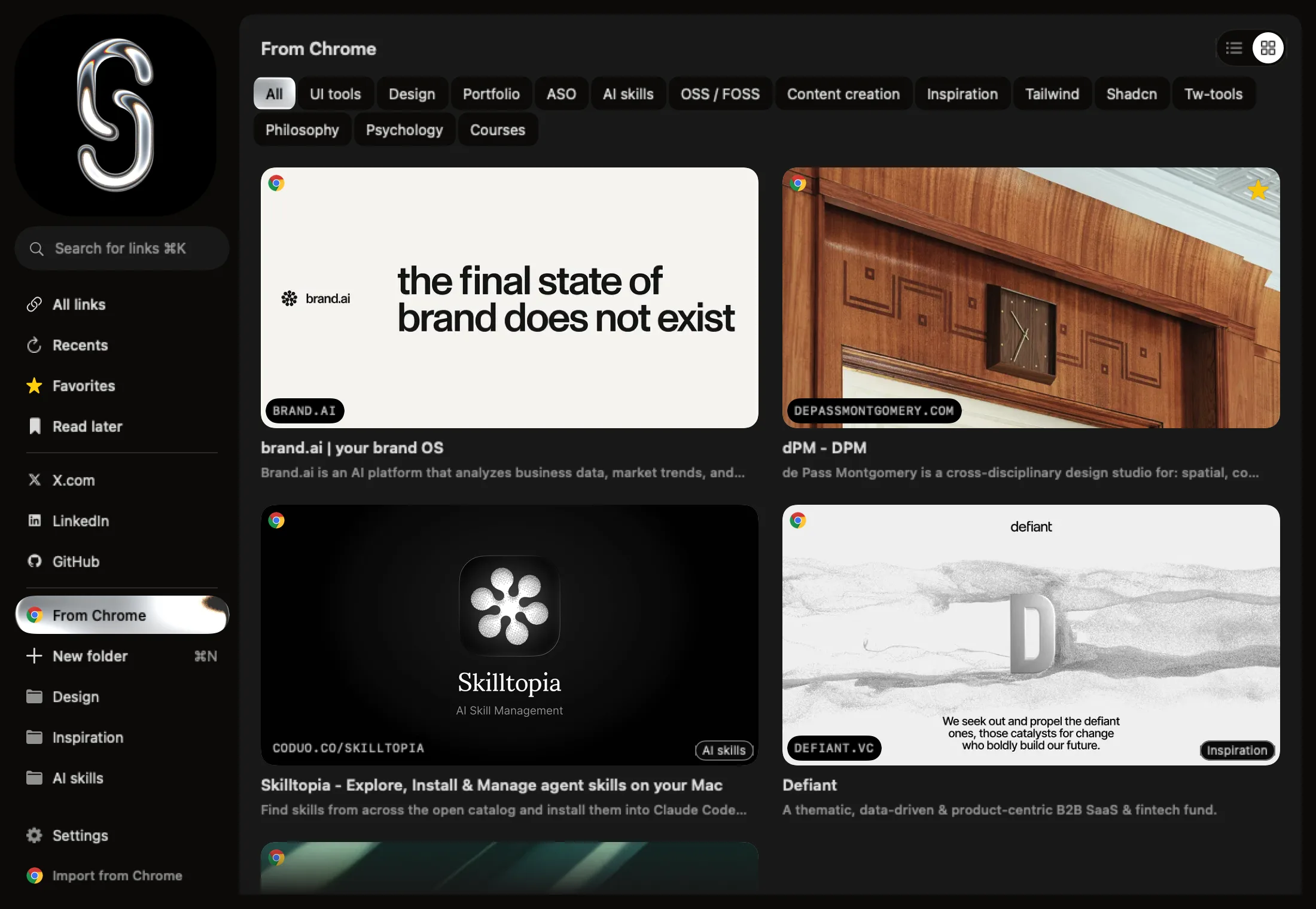
After the import, the library's From Chrome section lists the links the import brought in, with one chip per imported folder along the top.
One caveat belongs to Chrome itself. Chromium also defines files named AccountBookmarks, EncryptedBookmarks2 and EncryptedAccountBookmarks2 next to Bookmarks, so if you are signed in to Chrome, the Bookmarks file may not hold every bookmark you see. Shareling reads only the file you pick.
What if I import twice?
Nothing is added the second time. Every link the first import added is now in your library, so the alert reports 0 added, counts those links as "already in your library", and skips the same bookmarks it skipped before.
Shareling decides that two bookmarks are the same page from a cleaned version of the address. It drops known tracking parameters such as utm_source, gclid and fbclid, ignores the part after #, sorts the remaining parameters and ignores a trailing slash on the root. So https://example.com/?utm_source=x and https://example.com count as one page.
When a page is already in your library, whether from an earlier import or from a link you saved another way, the importer writes nothing for it. The existing link keeps its folders; the import does not add Chrome's folders to it.
The importer also treats each bookmark as its own save. If an import stops part-way, what it had already saved stays, and running it again picks up the rest without doubling anything. The same holds if you import the same bookmarks from a second profile: pages already imported count as already in your library.
What gets skipped, and why?
Three things are counted as skipped, and each one has a reason:
- Anything that is not a web link. Only
httpandhttpsaddresses come across. Bookmarklets (javascript:),chrome://pages andfile:links are skipped as "not an http(s) link". - A second bookmark for the same page in the same file. The first one is imported, and later copies are skipped as "same page as an earlier bookmark in this file". Their folders do not merge onto the first copy.
- A folder name over 64 characters. Shareling folder names have a 64-character limit. The link is still imported with its other folders, but the long folder is dropped, and the link is counted in the skipped number with that folder named as the reason.
That third case means the skipped number can include links that did arrive: it counts problems, not missing links.
A file that is not Chrome's format at all (not JSON, no roots object, or a bookmark with no address) stops the whole import. The alert title reads "Couldn’t Import Bookmarks", and its message gives the error.
Is anything shared with anyone on import?
No. Imported links go only into your own library, the same place a link lands when you keep it for yourself. The importer creates no channel and sends nothing to another person.
Your folders stay private even later on. In Shareling, folders are private to each person and never travel with a link: if you send an imported link to someone, they get the link and your note, not your folder names. A channel is always between exactly two people, and Shareling has no read receipts.
Frequently asked questions
How do I import Chrome bookmarks into Shareling?
In Shareling's library window on the Mac, choose File > Import Chrome Bookmarks… and select Chrome's Bookmarks file. For the first Chrome profile it is at ~/Library/Application Support/Google/Chrome/Default/Bookmarks. When the import finishes, an alert reports how many links were added, how many were already in your library and how many were skipped.
Can Shareling import the HTML file Chrome exports?
No. Shareling reads Chrome's own Bookmarks file, which is JSON. The HTML file from Chrome's Export Bookmarks is not JSON, so the import stops and the alert says the file could not be imported.
What happens to my Chrome bookmark folders?
Each folder in a bookmark's path becomes a Shareling folder on that link, so a bookmark in Work > Research gets both Work and Research. The Bookmarks bar and Other bookmarks themselves do not become folders.
Will importing my Chrome bookmarks twice create duplicates?
No. Shareling identifies each link by its cleaned address, and a link already in your library is counted as already there and left untouched. A second import of the same file adds 0 links and counts the rest as already in your library or skipped.
How do I move Chrome bookmarks to a new computer?
Inside Chrome, Google's help describes exporting them from the Bookmark Manager (More > Export Bookmarks) as an HTML file, then importing that file on the other computer through More > Bookmarks and lists > Import bookmarks and settings. If that Chrome already has bookmarks, the imported ones go into Other bookmarks.
Send a link to the person you mean it forShareling is a Mac, iPhone and iPad app for sending a link to one person and keeping the links you save, synced through your own iCloud.