To film yourself with the iPhone back camera, stand the phone somewhere steady, switch Camera to Video, start recording and walk into the shot. The catch is that the screen faces away from you, so you can't see whether you're in frame until you walk back and watch the clip.
This guide covers Apple's own ways first: the Camera app on its own, AirPods and Apple Watch. Then it covers the two-iPhone way, where a second iPhone shows you the back camera's picture live and starts and stops the recording from your hand.
How do you film yourself with the back camera using only the Camera app?
Put the iPhone on a stand or a stable surface, open Camera, tap Video, and tap the Record button or press either volume button to start. Apple's guide lists the same three controls for stopping: the Record button, either volume button, or the Camera Control on models that have one.
- Frame the spot where you'll stand. Put an object there first if you can, so you have something to check the frame against.
- Open Camera and tap Video.
- Tap the Record button or press a volume button.
- Walk into the frame and film your take.
- Walk back and tap the Record button again to stop.
In Photo mode you can also press and hold either volume button to start a QuickTake video. Either way, the first and last few seconds of every take are you walking to and from the phone, and you trim them later.
The bigger problem is framing. When the back camera points at you, the screen points away from you. If you drift out of frame halfway through, you find out afterwards.
How do you start and stop recording from a distance?
Supported AirPods and Apple Watch both start and stop an iPhone recording without you touching the phone.
AirPods. On iOS 26, supported AirPods act as a camera remote. Turn it on in Settings > [your AirPods] > Camera Remote and choose Press Once or Press and Hold. Switch Camera to Video mode, press the stem to start recording, and press it again to stop. The AirPods give you no picture, so framing is still a guess.
Apple Watch. Camera Remote on Apple Watch starts a video when you touch and hold its Shutter button, and stops it when you tap. It also shows you the frame, which the next section covers.
Can you see yourself while filming with the back camera?
Yes, if you have an Apple Watch or a second iPhone. Apple describes Camera Remote as a way to use the watch as a viewfinder for the iPhone camera, and it lets you pick the Rear camera in its settings. Apple lists its limits plainly: the watch has to stay within normal Bluetooth range of the iPhone, about 10 meters (33 feet), and you frame the shot on a watch-sized screen.
Apple has no built-in feature that shows one iPhone's camera on another iPhone. We searched Apple's support site for one on 2026-09-24 and found Continuity Camera (which is for a Mac) and accessibility remotes that show no camera picture. For iPhone to iPhone you need an app.
How do you film yourself with the back camera using a second iPhone?
Futari splits the job across two iPhones: the Shoot phone films with its back camera, and the See phone in your hand shows its live picture and starts and stops the recording. Both phones need Futari, iOS 26, and the same Wi-Fi network.
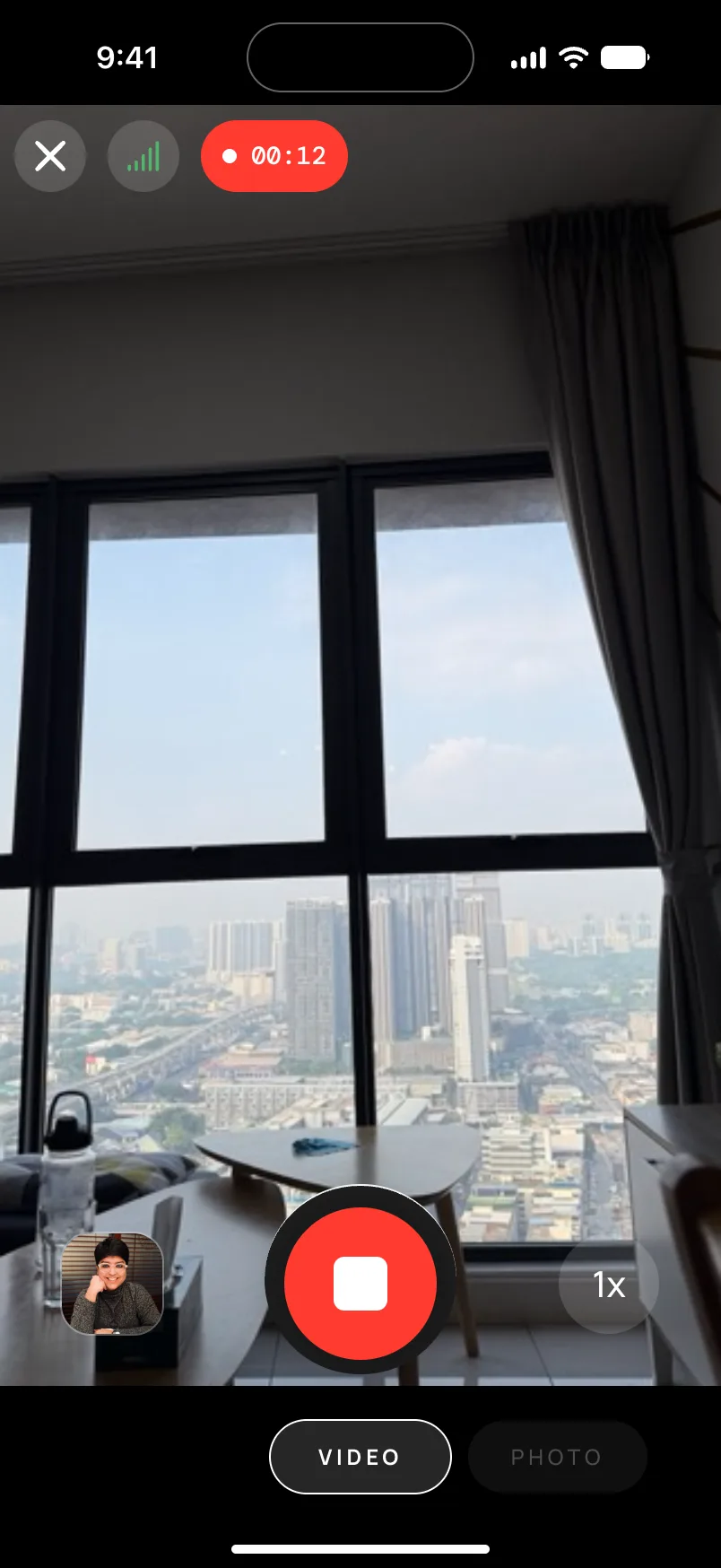
- Join both iPhones to the same Wi-Fi and open Futari on both.
- When the other phone appears on Home, tap it. The other phone shows that yours wants to connect; tap Accept.
- On the phone that will film, choose Shoot. One tap puts this phone on Shoot and the other on See.
- On the Shoot phone, pick VIDEO in the mode strip. The See phone has no mode strip of its own, so the mode is always set on the Shoot phone.
- Stand the Shoot phone where you want the camera and walk into frame holding the See phone.
- Check your framing on the See phone. Tap the picture to set focus and exposure, and change the zoom from there if you need to.
- Press the See phone's shutter to start recording and press it again to stop.
The See phone can send the Shoot phone three commands: the shutter, zoom, and a focus and exposure point. In video mode the shutter is the record toggle, so one button starts and stops the take. While the Shoot phone records, the See phone shows a recording pill with a running clock, and the Switch button that swaps roles is gone from both screens, so nobody swaps roles halfway through a take.
When you stop, the video goes into a "Futari" album on both phones. You don't have to AirDrop the take to the phone in your hand.
What happens if the connection drops while you are recording?
The recording keeps going. In Futari's code, only a person starts or stops a recording, and the connection is never part of that decision.
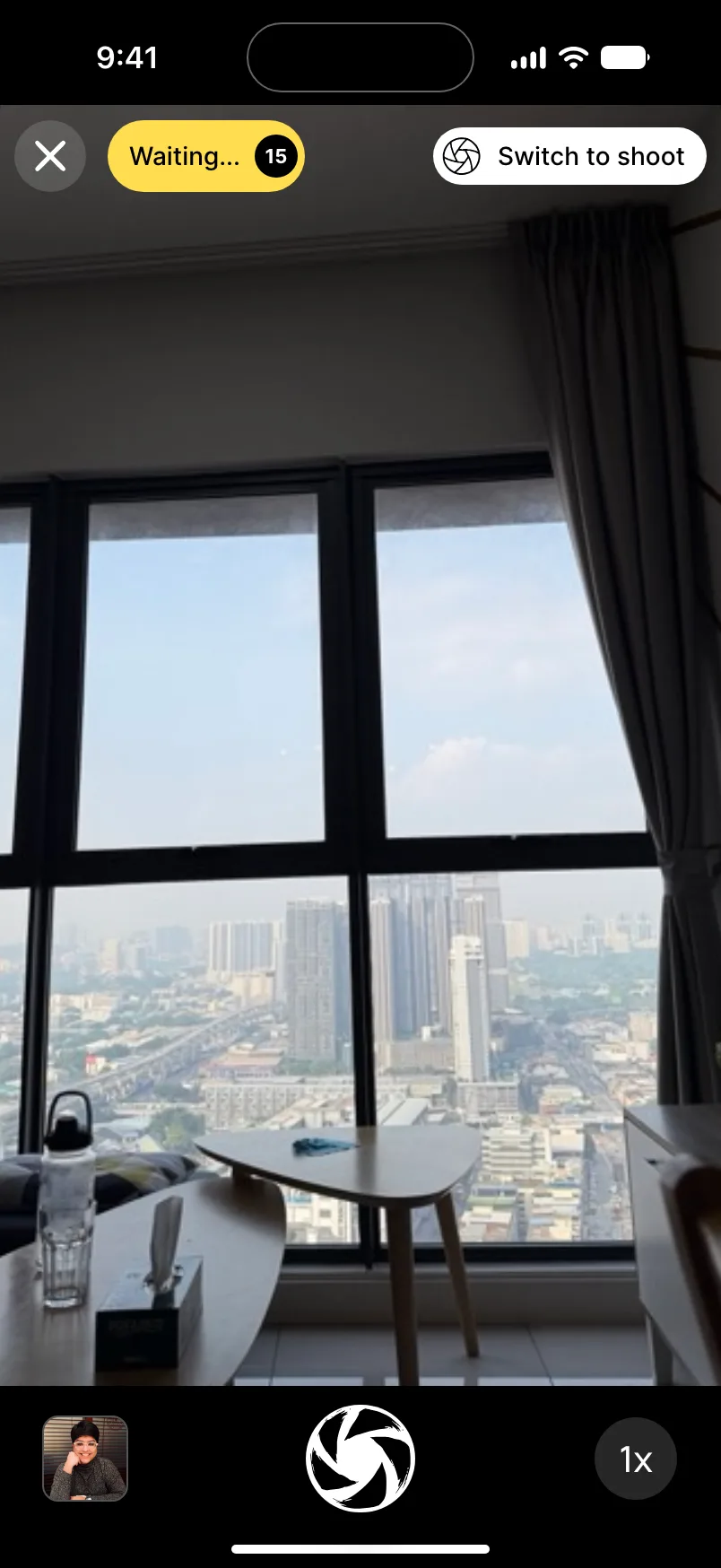
After 5 seconds without hearing the other phone, both screens show "Waiting…", and the See phone keeps the last frame it received. If the link comes back within 15 seconds, the session carries on. If it doesn't, the pair ends and both phones go back to Home. Leaving the camera screen closes an open recording instead of throwing the partial file away.
The Shoot phone saves the finished video to its own Futari album straight away, and queues a copy for the See phone. With no connection, the copy waits. The transfer sends in chunks and remembers the last byte the other phone confirmed, so a second drop mid-transfer resumes from there instead of starting over.
One thing ends a take early: sending Futari to the background on either phone. The leaving phone tells the other one, and both end the pair at once instead of waiting 15 seconds. Keep Futari open on both phones for the whole take. Futari turns off auto-lock while it's open, so the screens won't go dark on their own.
What doesn't Futari do for video?
Futari films portrait video from the back camera and nothing else. These are the limits worth knowing before you set up:
- Portrait only. Futari records 9:16 video with the recording locked to portrait. For a landscape take, use Apple's Camera app.
- 1080p, no format picker. The camera session runs at 1920 by 1080 and steps down to 1280 by 720 when the link between the phones is weak. There is no 4K and no frame-rate setting. Keep the phones close enough for a strong link.
- Back camera only. Futari uses the back camera and has no flip to the front camera. It has no timer, burst, filters or portrait mode either. The team deleted them on purpose in September 2026 and recorded why in a design decision.
- Sound comes from the Shoot phone. Futari asks for the microphone the first time you switch the Shoot phone to video. If you decline, it still records, silently. Futari's code puts it this way: "A denied microphone produces silent video rather than no video."
- Storage. With under 512 MB free on the Shoot phone, new recordings won't start and Futari says so on screen.
- iPhone and iOS 26 only. No iPad, no Android. Both phones need Futari and the same Wi-Fi network.
- A subscription. At least one of the two phones needs a Futari subscription, and it covers both phones for that session. See Futari pricing.
Which way should you use to film yourself?
Pick by whether you need to see the frame and what you already own.
| Method | Sees the frame | Starts and stops from a distance | What you need |
|---|---|---|---|
| Camera app, volume button | No | No | The iPhone |
| AirPods Camera Remote | No | Yes | Supported AirPods, iOS 26 |
| Apple Watch Camera Remote | Yes, on the watch | Yes, about 10 m | A paired Apple Watch |
| Futari | Yes, full screen on an iPhone | Yes | Two iPhones on iOS 26, same Wi-Fi |
For a quick landscape clip, the Camera app and a volume button are fine. If you move around the frame, or you film tight shots where a few centimetres matter, a live picture in your hand saves the retakes. More on Futari is at coduo.co/futari.
Frequently asked questions
How do I film myself with the back camera and still see myself?
Apple's own option is Camera Remote on Apple Watch, which shows the iPhone camera on the watch and records from about 10 meters (33 feet) away. With a second iPhone, Futari shows the filming phone's back camera full screen on the phone in your hand, and that phone starts and stops the recording.
Can I start and stop an iPhone video recording without touching the phone?
Yes. Supported AirPods start a video when you press the stem in Video mode and stop it on the next press. Apple Watch Camera Remote starts recording when you touch and hold its Shutter button and stops when you tap it. Futari's See phone starts and stops a recording on the other iPhone.
Does Futari keep recording if the two iPhones lose their connection?
Yes. A dropped link does not stop a Futari recording. If the link stays down for 15 seconds the pair ends, and the filming phone closes the file instead of discarding it. It saves the video to its own Futari album and queues it for the other phone, and a transfer cut off by a drop resumes from the last confirmed byte.
Does Futari record landscape or 4K video?
No. Futari records portrait 9:16 video from a camera session that runs at 1920 by 1080, with no resolution or frame-rate picker. For landscape or 4K, use Apple's Camera app.
Do I need two subscriptions to film with two iPhones?
No. At least one of the two phones needs a Futari subscription, and it covers both phones for that session. Plans are at coduo.co/futari#pricing.