
Safari's Reading List is a queue of pages you mean to read once, and bookmarks are a shelf of links you keep and come back to. The Reading List can save pages for offline reading and tracks what you have read; bookmarks are filed in folders and stay until you delete them.
What is the difference between Safari's Reading List and bookmarks?
A bookmark is a saved link to a site you want to revisit, and a Reading List item is a page you mean to read later. Apple's Safari guide for Mac puts it as "a link to a website that you save so you can quickly revisit it later." The Reading List, in Apple's iPhone guide, is for items you want to revisit later, and they can be read without an internet connection.
| Bookmarks | Reading List | |
|---|---|---|
| Made for | Sites you return to | Articles you mean to read once |
| Organised by | Folders you create and name | One list; hide read items with Unread (Mac) |
| Read or unread | Not described in Apple's bookmark guides | Mark read or unread |
| Offline reading | Not described in Apple's bookmark guides | Save Offline per item, or automatically |
| Editing | Rename, edit the URL, move, reorder; add a description on Mac | Copy, open, mark read, delete |
| Search on Mac | Search field at the top of the sidebar | Search the Reading List |
| iCloud sync | Yes, with folders and organisation | Yes |
Safari also has Favorites, which are bookmarks too. On a Mac, when you add a bookmark the default folder is Favorites, and you can pick a different bookmarks folder to show as Favorites on the start page.
How you add each one, on a Mac:
- Bookmark: add a bookmark, choose its folder, and optionally rename it and give it a description.
- Reading List: Shift-click a link on a web page to add the linked page to the Reading List.
On iPhone:
- Bookmark: bookmark the page, then create folders, move it into one, and rename or reorder bookmarks later.
- Reading List: tap Share, then Add to Reading List. To save a link without opening it, touch and hold the link and tap Add to Reading List.
On iOS 27 and macOS 27, Safari with Apple Intelligence groups bookmarks and Reading List items into suggested topics automatically when three or more are related. These groupings are made for you; they are not folders you name. On iPhone, Apple Intelligence needs an iPhone 15 Pro, iPhone 15 Pro Max or an iPhone 16 model or later.
Which one works offline?
The Reading List works offline, once its items are saved offline; Apple's bookmark guides describe a saved link, not a saved copy of the page. Apple's iPhone guide says Reading List items can be read without an internet connection, and both platforms have a switch to make that automatic.
On iPhone:
- Open Settings > Apps > Safari.
- Below Reading List, turn on Automatically Save Offline. Safari then saves all Reading List items to iCloud for offline reading.
On a Mac:
- For one item, Control-click it in the Reading List and choose Save Offline.
- For all of them, turn on Safari > Settings > Advanced > "Save articles for offline reading automatically."
If you are saving pages for a flight or a train with patchy signal, the Reading List is the one to use.
Shareling does not save pages for offline reading either. It keeps each link's URL, title, site name, preview image address, description and your note in a local database, and its share extension can save a link while you are offline. The page itself is not stored, so opening a link needs a connection.
Do they sync across my devices?
Yes, both sync through iCloud, as long as Safari is turned on in iCloud settings on every device and each one is signed in to the same Apple Account. With iCloud for Safari on, bookmarks, the Reading List, history, open tabs and Tab Groups are kept up to date on iPhone, iPad and Mac.
- Bookmarks sync with their folders and organisation. They also sync to Windows through iCloud for Windows, and iCloud archives them automatically, so you can restore an earlier version from iCloud.com.
- The Reading List syncs changes both ways. Remove an item on your iPad and it is gone from your iPhone and Mac too.
- Favorites can be kept the same on all your devices through iCloud for Safari.
To check the switch on iPhone, go to Settings > [your name] > iCloud > See All > Safari. A device where Safari is off in iCloud settings cannot reach the Safari data stored in iCloud.
Sync keeps one person's devices in step. Apple does not describe it as sharing a Reading List or a bookmark folder with another person. The shared collection Apple documents in Safari is a Shared Tab Group, sent through Messages, and everyone in it needs an Apple Account with Safari in iCloud and two-factor authentication turned on.
When should I use each?
Use a bookmark for a page you will open many times, and the Reading List for a page you want to read once and then clear. A few cases:
- A tool, a dashboard, a reference doc you check every week: bookmark it, in a folder named for the project. Put the ones you open daily in Favorites so they show on the start page.
- A long article someone mentioned in a meeting: add it to the Reading List, turn on offline saving, and mark it read when you finish.
- An article you read and want to keep: it started in the Reading List; once read, bookmark it into the right folder, then delete it from the list.
- A link you want to hand to one other person: neither. On a Mac, Safari's Share button sends a page through Mail, Messages, Notes, Reminders and more, and the link then lives in that conversation.
That last link is the one that gets lost. It sits in a chat thread, and keeping it means copying it into your bookmarks by hand. Moving a link between your own devices is a different job; Send a link from iPhone to Mac covers AirDrop, Handoff and Universal Clipboard.
How do Read later and Favorites work in Shareling?
In Shareling, Read later and Favorite are private flags you switch on for a link, not folders, and the person who sent you the link never sees them. Shareling is a Mac, iPhone and iPad app for sending a link to one specific person and keeping your own links in one library. The first time you flag, file or open a link, Shareling writes a record of your own about it, which its code calls an annotation. That record holds your folders, whether and when you read the link, whether you hid it, and the Favorite and Read later flags.
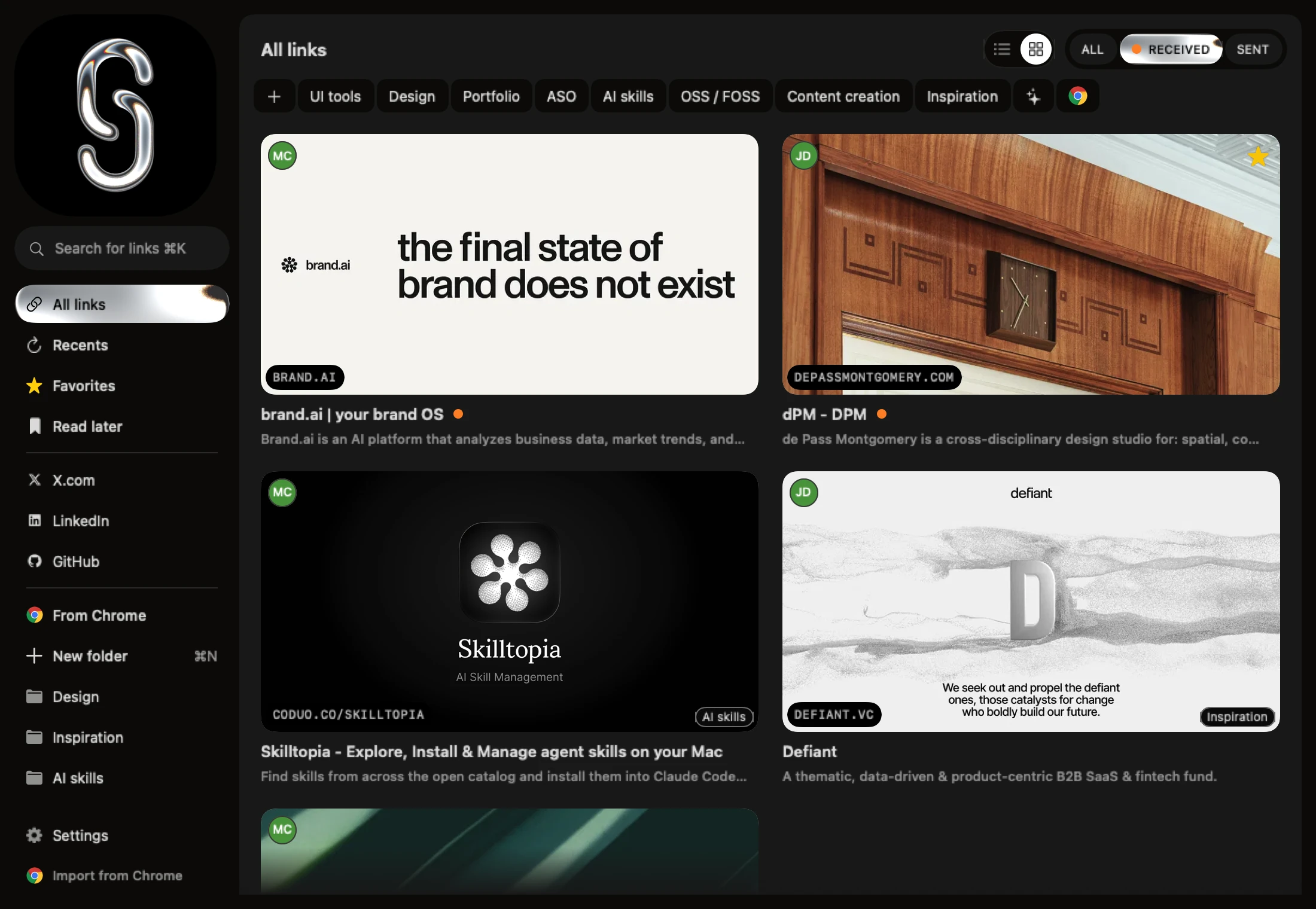
To use them:
- Right-click a link's card or row on a Mac, or touch and hold it on iPhone or iPad.
- Choose Favorite or Read later on a Mac, or Add to Favorites or Read Later on iPhone and iPad.
- Open Favorites or Read later in the sidebar to see every link with that flag.
- To clear a flag, open the same menu: the item now reads Unfavorite or Remove from Read later (Remove from Favorites or Remove from Read Later on iPhone and iPad).
Because these are flags and not folders, one link can be a favorite, marked Read later, and filed under two folders at once. In Safari, Favorites is itself a bookmarks folder, the default one on a Mac.
Read state is a third flag, separate from Read later. Opening a link from the library marks it read, and Mark as read or Mark as unread flips it by hand. Opening a link does not take it off Read later; you remove that yourself. The code keeps "I have opened this" and "I still mean to come back to it" apart.
Why they never travel. When someone sends you a link, the link record lives in the sender's space, and your annotation lives in your own private space. Shareling writes your flags only to your own annotation. The design rulings behind this say it directly: read state lives in the recipient's private zone, and there are no read receipts (ruling S-07). The code comment on the annotation store gives the reason in one line: a write to the sender's space "would be a read receipt." So starring a link your friend sent, or leaving it in Read later for three weeks, tells them nothing.
Your annotation still follows you. It is one record in your own zone, and the rulings chose that shape because keeping it on one device only "breaks across two devices" (ruling S-05).
What it does not do. Shareling has no offline copy of the page, as covered above, so its Read later is a reminder, not an offline queue. If you read on planes, Safari's Reading List is still the better tool for that article. Shareling fits the links that arrive from a person, with a note about why they matter, and that you want to keep in the same place as your own. The Tags vs folders guide covers how Shareling's folders work.
Frequently asked questions
What is the difference between Reading List and bookmarks in Safari?
A bookmark is a link you save and file in a folder so you can revisit the site. A Reading List item is a page you mean to read later; it can be saved for offline reading and marked as read or unread.
Does Safari's Reading List work offline?
Yes, once the items are saved offline. On iPhone, turn on Settings > Apps > Safari > Automatically Save Offline. On a Mac, Control-click an item and choose Save Offline, or turn on Safari > Settings > Advanced > Save articles for offline reading automatically.
Do Safari bookmarks and Reading List sync between iPhone and Mac?
Yes. With Safari turned on in iCloud settings and every device signed in to the same Apple Account, bookmarks, their folders and the Reading List stay up to date on iPhone, iPad and Mac.
Can I share my Safari Reading List with someone else?
Apple describes iCloud sync of the Reading List as keeping one person's devices in step, not as sharing with another person. The shared collection Apple documents in Safari is a Shared Tab Group.
Is Shareling's Read later a folder?
No. Read later in Shareling is a private flag on a link, like Favorite. A link can be a favorite, marked Read later and filed in folders all at once, and the person who sent it never sees any of them.
Send a link to the person you mean it forShareling is a Mac, iPhone and iPad app for sending a link to one person and keeping the links you save, synced through your own iCloud.